How to blur a screenshot on iPad
Markup on iPadOS has the same highlighter trap as iPhone. Filled shapes or a browser tool.
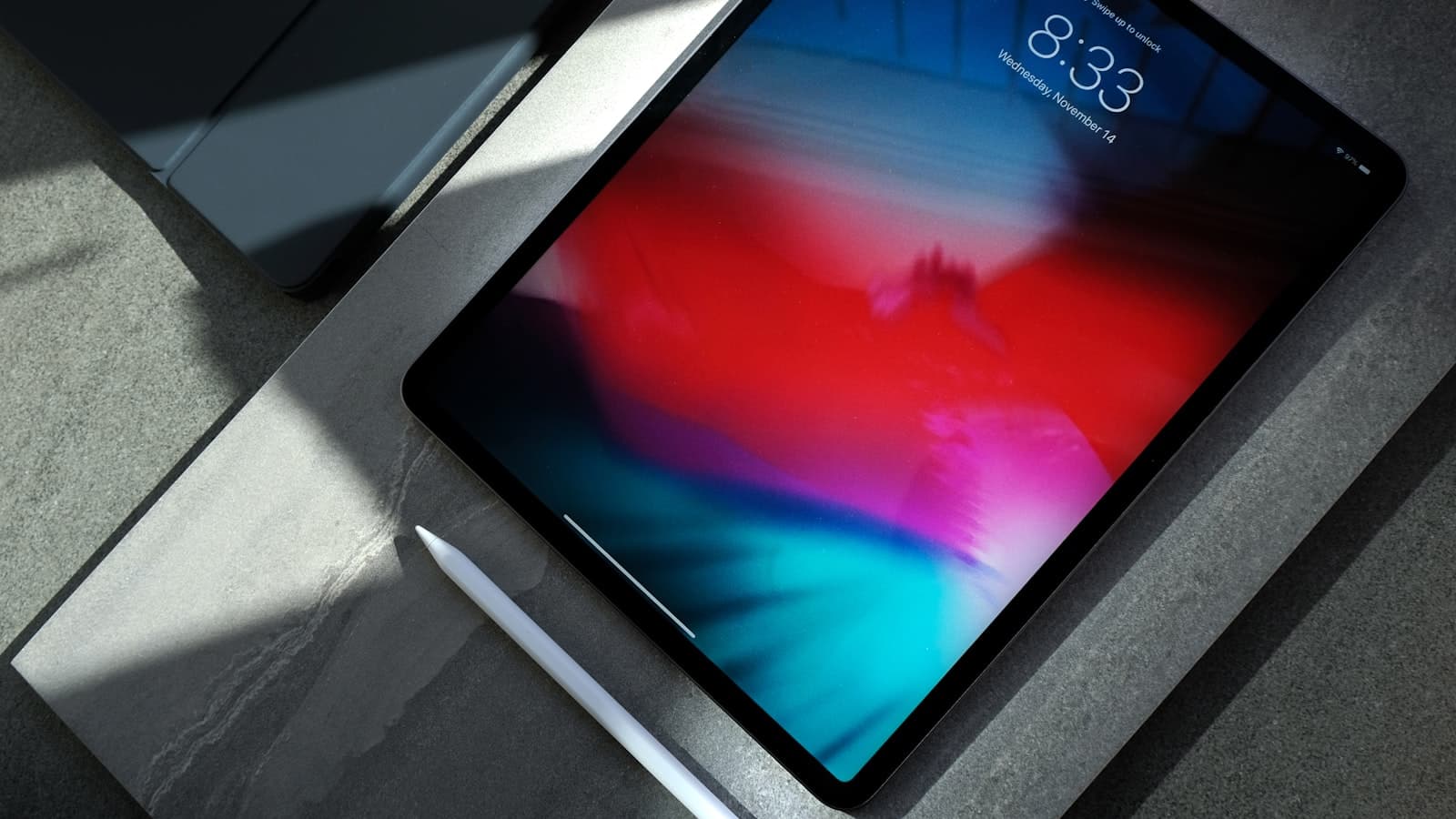
iPad Markup is iPhone Markup with more room to make the same highlighter mistake.
Apple Pencil makes a yellow wash that looks professional on a large display. Recipients can still run the brightness trick that 9to5Mac demonstrated on iPhone in 2018 and that Lifehacker later summarized: Photos → Edit → brightness, and the “covered” letters return. The highlighter is often a translucent overlay. A filled shape, or pixels replaced in a PNG, is not.
Capture is still the top button plus volume up, or a Pencil swipe from a bottom corner if you enabled that gesture. The thumbnail appears. That thumbnail is Markup’s on-ramp. It is also where the highlighter feels fastest. Slow down. Pick a filled shape, or skip to Safari.
Does Markup on iPad hide text?
Highlighter, no, not reliably. Pen at full opacity can, if you actually cover every glyph. Shapes with a solid fill are easier to verify. People fail this on iPad because the Pencil feels precise, so they paint a pretty translucent rectangle and call it done. Pretty is not the test. Zoom until the text is gone.
The iPhone-specific sequence, including why highlighter fails, is the iPhone guide. The incident piece with the original reporting is highlighter doesn’t hide text. This page is the iPad buttons and the bigger canvas.
How do I redact a screenshot on iPad with a filled shape?
- Open the screenshot in Photos, or tap the thumbnail after capture.
- Markup → square or rectangle → fill. Black is honest.
- Stretch until the text is gone, including descenders on g and y, and a little padding around the box.
- Save a copy. Do not tap a share path that says original.
Duplicate in Photos first if you still need the unredacted image for yourself. iPad users share from Split View and grab the wrong tile. Naming the copy redacted.png in Files reduces that.
How do I blur a screenshot on iPad in Safari?
Markup still will not give you a Gaussian you should trust for an OTP. Use Split View: Photos on one side, BlurThis on the other. Drag the image in, bar or blur the region, download. Stage Manager users can float the same tab. Files will hold the PNG. Share that file.
Pencil on a web canvas is optional. A finger drag is enough for a rectangular region. Undo if the box is short. Do not screenshot Safari to export. You would capture the tab bar, the download pill, maybe a Folio keyboard suggestion strip.
What extra chrome does iPad add?
Multitasking means two apps in one PNG. Mail on the left, the bug on the right. Slide Over can leave a sliver of Messages. The floating keyboard can reprint a password. The status bar can show a personal hotspot name. Crop at capture time when you can. Bar what you cannot crop.
Sidecar and Universal Control users sometimes capture a Mac window on the iPad or the reverse. Check which device’s chrome you included. A Mac menu bar on an “iPad screenshot” is a tell that you grabbed more than the dialog.
Classroom, Notes, and Freeform
Students screenshot other people’s answers, then post the PNG in a group chat “for the homework.” Cover names. Cover emails in Classroom comments. Teachers screenshot a roster to ask IT about a login error: cover the roster, keep the error. A large iPad canvas makes it easy to include five extra rows you did not look at.
Notes markup on a screenshot pasted into a note can be a layer sitting on an embedded image. Export a flattened image if you share outside the note. Layers are how “covered” becomes “still copyable” in other formats. A screenshot PNG with baked pixels is the boring object you want.
When to skip blur
Phone numbers, emails, grades next to a legal name, anything short. Use a filled bar. Verify at 100% zoom with Pencil or pinch. If a recipient later opens Photos and drags brightness, a highlighter stroke may fail. A filled rectangle should not. That is the whole difference this article exists to repeat.